Thursday, May 4, 2017

Attendant Pro Q2-2017 Update: Transfer Advisor, Dynamics 365/CRM & Skype for Business Merged User Experience, Color Code Call Queue/RGS Calls & More

Below is a summary of the new features in Q2-2017 (May 2017) update for Attendant Pro, which can be downloaded here as MSI installer.

  • Transfer Advisor
  • Dynamics 365/CRM & Skype for Business Merged User Experience
  • Color Code Call Queue & Response Group Service Calls for at-a-glance identification
  • Color code calls for specific users for at-a-glance identification
  • “Saved Searches” now appear in the “Contact Group” area as a “Group”
  • Microsoft Outlook style “Contact Group” area layout
  • Compact dropdown style “Contact Group” area layout
  • List incoming call toast style
  • Attendant Pro attendant/operator “Notes” now display on incoming call & handled call toast
  • Ability to “Meet Now” from Options Menu
  • Update notification and 1-Click update
  • Dutch translation improved by human translation
  • Splash screen
  • Auto start Attendant Pro on Windows start
  • Additional Logging around call recording
  • Added Attendant Pro version in log file
  • Additional user interface theming to make Attendant Pro even closer to Skype for Business UI
  • Microsoft Teams attendant console user interface
  • Bug Fix: UCWA credentials improvement in scenario that pool for user resource is different from the pool for the application resource
  • Mitigated a Skype for Business client bug that allows answering more than one simultaneously ringing incoming RGS call


Transfer Advisor: Suggested Likely Transfer Contacts for this Caller

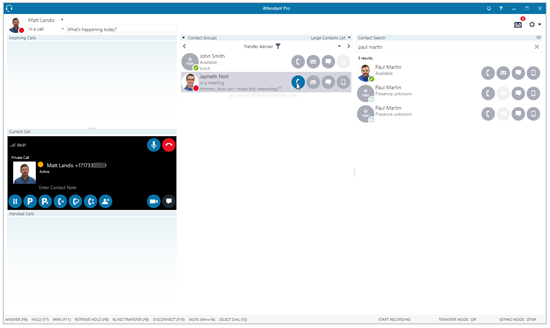
Transfer Advisor automatically suggests the most likely contacts a caller will want to be transferred to based on intelligence gathered from multiple sources including caller history and Office 365 or Microsoft on premises servers.

  • “Transfer Advisor” suggested contacts are shown side by side with Searched contacts
  • Caller history is seamlessly shared among attendants for more rapid relevance with our “No Additional Servers” & “No Server Configuration” sharing technology. (or can be configured not to share)
  • “Transfer Advisor” uses your available Office 365 or On Premises data from Exchange, Skype for Business, Dynamics 365/CRM & LinkedIn to suggest who this caller will want to be transferred to in your company with very high accuracy.
image

If the “Transfer Advisor” contact group is selected, when you answer a call the group will be populated with suggested contact. If the Transfer Advisor group is not selected when you answer a call, the suggested contacts will displayed in the “Search” panel.

The more services Attendant Pro is connected to (Dynamics 365/CRM, LinkedIn, etc) the more suggestions will light up.

How to configure: Click Here

Dynamics 365/CRM & Skype for Business Merged User Experience

The Dynamics 365/CRM integration we are introducing into Attendant Pro is more than “call pop”:  Instead, it is Dynamics & Skype for Business being brought together into one continuous, seamless & familiar user experience. Dynamics 365 lights up new capabilities in the Skype for Business user experience so that what product user’s are using fades into the background and they just effortlessly complete their daily tasks. Below are some of the ways we are bringing together Skype for Business & Dynamics CRM into one experience:

  • Relevant Dynamics 365/CRM Contact/Account information surfaced in Incoming & Handled call toasts
  • Ability to add a Dynamics 365/CRM Activity Note with 1-Click inside a clean & familiar Skype for Business user interface
  • Dynamics 365/CRM Contact/Account owner suggested as likely "Transfer To" candidate
  • Be instantly notified if a PSTN Caller can collaborate using Skype for Business
  • Eliminate the need for users to “Popout” to the slow Dynamics 365/CRM web interface
  • And More

Time stamped Dynamics 365 Activity Note with 1-Click inside a clean & familiar Skype for Business user interface.

image

Relevant Dynamics 365/CRM Contact/Account information surfaced in Incoming & Handled call toasts

image

Dynamics 365/CRM Contact/Account owner contact suggested as likely "Transfer To" candidate. It looks just like any other Skype for Business contact but comes from Dynamics 365.

image

Merging Dynamics 365/CRM & Skype for Business into one continuous, seamless & familiar user experience will be a theme we will build on by adding additional functionality in future releases.

Color Code Call Queue & Response Group Service Calls

We enhance Office 365 Auto Attendant, Call Queues & Response Group Service calls by allowing them to be color coded. Incoming calls from different queues can now be instantly distinguished using colors.

image

Configuration is as simple as associating a color with text contained in the Call Queue/RGS. Just type the matching text and a hexadecimal color code or color name (example: Red) separated by a comma. Examples below:

  • Service,Red;
  • Sales,Green;

Color Code Individual Callers

Caller Name or Number can also be color coded for quick identification of key contacts. Call out very important callers.

Microsoft Teams attendant console User Interface Theme

Microsoft Teams is rapidly becoming a very significant product in the Microsoft Office suite. We are releasing Attendant Pro as the first Microsoft Teams attendant console UX for Cloud PBX or Skype for Business, to build on our theme of being familiar for users who are already using Microsoft products.

image

Since Attendant Pro brings a Dynamics 365/CRM & Skype for Business merged user experience, this means users can complete Dynamics 365 tasks in a familiar Microsoft Teams experience.

image

Attendant Pro can be downloaded here as MSI installer.

Friday, January 20, 2017

Attendant Pro Jan 2017 (Q4-2016) Update: Skype for Business 2016 UI, MP3 Recording, Export-Import Settings & More

Download MSI v1.0.6229.30832: Click Here
Get a fully working Trial or Schedule Live Demo: http://landiscomputer.com/attendantpro

  • Skype for Business 2016 User Interface & Color Scheme
    • Skype for Business 2015 & Lync 2013 are still an option
  • MP3 call recording format
  • Easily Export and Import Settings on another PC
  • Ability to push out default application settings that can be later edited by user
  • “Current Call” panel auto centers or can be manually moved up or down
  • Video buttons to Start/Stop video from Current Call, Contacts (right click) & Contact Details
  • Added Vertical “Contact Groups” layout
  • Added ability to click anywhere on the incoming call to answer
  • Ability to Get a Trial Key directly from the main screen
  • Added ability to added buttons for specific contact methods (Work, Mobile, Voicemail, Other, Home) to a “Contact Layout”
  • Small Contact Layout has been modernized
  • Large Contact Layout has been modernized
  • Large Contact List Layout has been modernized
  • “Contact Details” now have modern button look
  • Improved: Presence change icons now have Skype for Business styling
  • Improved: human German translation
  • Fixed: Call Forwarding sometimes stops working after Attendant Pro is running for awhile
  • Fixed: Out of Office & Note formatting in “Contact Details”
  • Fixed: “Vertical Tab” Character in contact fields can cause contact list not to download in “Advanced Search“
  • Fixed: Setting hot keys from Group Policy Objects now works correctly

In this release you will notice a lot of fine tuning of the user interface.

Skype for Business 2016 User Interface & Color Scheme

Attendant Pro has now includes not only a Skype for Business 2015 and Lync 2013 user interface, but also the new Skype for Business 2016 UI that is more friendly to accessibility colors.

image

Easily select which user interface with a click or by pushing out a policy.

image

Record Calls in MP3 Format

Call recording is built into Attendant Pro and now includes the ability to chose MP3 or WAV recording format for more efficient storage. To configure this go to Options | Recording | Compress to MP3. (Requires Windows 8 or later OS)

image

Easily Export and Import Settings on another PC

Attendant Pro application settings can be rolled out several ways:

  • Manually configure them using the Options window
  • Push them out using standard Windows Server Group Policy Objects
  • Export the settings from Attendant Pro on one PC and import to another

Go to Options | Configuration Information and click “Export Configuration File” to create a configuration file that can easily be imported on another machine.

image

Push out an Application Package that Includes default Attendant Pro settings

We have now created a simple method for organizations to create an “application package” that includes organization specific settings users will see when they first run Attendant Pro.

The process to create this package:

  • Configure Attendant Pro as desired
  • Go to Options | Configuration Information and click “Export Configuration File”
  • Rename the configuration file “Settings_Default.config”
  • Place this “Settings_Default.config” in the Attendant Pro installation directory


“Current Call” Panel Position can be adjusted

The Current Call panel will auto center based on screen size or can be manually moved up or down to customize to the need.

image

Adjust down.

image

Video Call Control

Video start/stop control is now available on Current Call, Contacts (right click) & Contact Details.

image

Contact Details

image


Vertical “Contact Groups” layout

Arrange “Contact Groups” layout horizontally or vertically. Options | General | Contact Groups Layout.

Horizontal “Contact Groups” layout.

image

Vertical “Contact Groups” layout.

image

Tuesday, December 27, 2016

Attendant Pro for Skype for Business 2016 Quick Start Guide

QuickStartGuide

Attendant Console for Skype for Business 2016 Quick Start Guide available here: PDF

Other Office 2016 Quick Start Guides Available Here: Click Here

Thursday, December 8, 2016

Microsoft Teams Attendant Console UX: We are committed to a Familiar Future

Whatever the future we believe receptionists should have a familiar & integrated experience. We have invested in developing a UX layer that enables us to deliver user interfaces that create a seamless & familiar attendant console companion to the Microsoft Office 365 or Skype powered tool of your choice. Whether Skype for Business 2015, Skype for Business 2016, Microsoft Lync 2013 or some other future Microsoft user interface, with Attendant Pro you can count on moving into the future with confidence.
imageAttendant Pro demonstration of a Microsoft Teams user experience.

Thursday, September 22, 2016

Attendant Pro Sept 2016 (Q3-2016) Update: Analytics Dashboard, See Contacts by Department, Office, Etc; Configure Current Call Buttons & More

Download MSI ver. 1.0.x Click Here

New Features

  • Attendant Console Analytics Dashboard (No Server, No Office 365 Dependency)
  • Advanced Search
    • Outlook-style Search Filters
    • See Contacts in a Department (Office, Location, Title) By Select from a List Created From Contact List
  • 1-Click Saved Search
  • Setting to remove unused call transfer buttons from the “Current Call”
  • Sign In or Out of all Skype for Business RGS Queues w/1-Click or Button Press (definable hotkeys)
  • Setting to Auto-Close conversations started by Attendant Pro (suppress inactive conversation windows)
  • “Handled Calls” Panel displays the Contact who picked up a parked call
  • “Medium Contact List” formatted Contact Layout added
  • Local Machine Settings (Hkey local machine) apply to all users on a machine
  • Attendant Pro lab tested with JAWS Accessibility software
  • Added Icelandic  language (machine)
  • Users can easily give Feedback via Microsoft Office like feedback navigation

Enhancements

  • Pop out Contact from Contact Details header panel
  • Contacts styled a bit closer to Skype for Business & Lync 2013
  • Voicemail & Options buttons in top right styled like Skype for Business & Lync 2013
  • Contact Details displays “No Contact Selected” if that is the case instead of a blank card
  • List contact formats now dynamically size according to width
  • “Park For” now clears the “Contact Search” field

Fixes

  • Recording now not interrupted by subsequent unanswered calls
  • RGS Queue statistics no longer timeout after running for some time
  • Redial now works with Skype for Business 2016


Attendant Console Analytics Dashboard (No Server, No Office 365 Dependency)

Attendant console analytics dashboard is now a built in feature and requires no additional servers or Office 365 services licenses. The key performance indicators can be displayed right in the Attendant Pro footer along with other application indicators like Microsoft Office applications.

image

More detail of the available KPI’s.

image

Clicking on the KPI’s will launch the Attendant Pro insights dashboard in Microsoft Excel.

image

The Attendant Pro Analytics Dashboard has the following reports and graphs out of the box:

  • Today key performance indicators
  • Date Range key performance indicator
  • ACD Activity Chart
  • Transfer Type Chart
  • In versus Out going Calls
  • Call Volume by Hour
  • Call Volume by Day

Additional dashboard KPI and charts can be added using standard Microsoft Excel methods.

To configure report and analytics dashboard just go to Options | Reporting and then Check “Enable Call Detail Reporting” and select the key performance indicators you want to display.

Advanced Search: Outlook-style Search Filters

NOTE: This feature requires Advanced Search. To turn on: Options | Search | Search=Advanced. Now restart Attendant Pro.

In “Contact Search”  turn on the [1] Filter panel, then [2] select a filter and now you are ready type type in (for this case) a Department.

image

Now just type in an existing department name (or part of a department name). Users can further filter by adding, for example, a contact name.

image

It

See Contacts in a Department (Office, Location, Title) By Select from a List Created From Contact List

NOTE: This feature requires Advanced Search. To turn on: Options | Search | Search=Advanced. Now restart Attendant Pro.

The feature allows users to a Department, Office, Location or Title from a list and show all the contacts in that object. Just select the Department list and select “Service” to show all the contacts in the “Service” department.

image

These lists are automatically generated from the contact list.

1-Click Saved Search

You can save commonly used searches for quick access.

Just [1] create a search and then [2] right-click in the search field and [3] click
“Add as Saved Search”image


Now you can further edit the “Saved Search” by editing the display Name and, if you wish, adding a keyboard shortcut. (the keyboard shortcut can even be global, so if you are working in another application it still works!)

image

Now you can display this saved search by clicking the menu that will appear beside the search. Users can also use the keyboard shortcut without using this menu.

image

Setting to remove unused call transfer buttons from the “Current Call”

Now you can configure what transfer buttons you want to show on the “Current Call”. Go to Options | Current Call and “Minimize” any buttons you don’t wish to appear on the “Current Call”.

NOTE: If shortcut keys are assigned to a transfer type the user will still have access to this transfer type.

image

Sign In or Out of all Skype for Business RGS Groups

Users can now sign in or out of all formal RGS Agent Groups with one click or shortcut key press. The “Options” window allows users to define shortcut keys for “Sign In All” and “Sign Out All” for efficient management of RGS Agent Groups.

image

Setting to Auto-Close Conversations started by Attendant Pro

(suppress inactive conversation windows)

image

“Handled Calls” Panel displays the Contact who picked up a Parked Call

The contact that picks up a Park Call is indicated in the “Handled Calls” panel.

image

“Medium Contact List” formatted Contact Layout added

Below is the new medium contact list layout.

image

Friday, July 1, 2016

Attendant Pro June 2016 Update: Assistant, Segmented Contact Search, Search Exchange Public Folders & Multi-Monitor Support & More


Download MSI v. 1.0.6032.27801 Here: Click Here
http://landiscomputer.com/attendantpro

New Features

  • Related Contacts now displays the Exchange Assistant contact (using EWS/No Additional Servers)
  • Segmented (pre filtered) Contact List Search (No Server Required)
    • Limit search results to Office, Department or other criteria of your choice. (no IT intervention)
  • Advanced Search: Exchange/EWS Public Folder Contact List(s) can now be a contact list search source (along w/Exchange GAL & CSV files)
  • Pop Out “Contact Details” panel/s onto any monitor
    • Have commonly used contacts pinned to any monitor for 1 click call or transfer access
  • Added List Contact Layouts (Now there is Tile or List formatted contact layouts)
  • F1 Help Multilingual Help (ES, DE, FR at this time) (online)
  • Call Pops based on RGS or Display Name ({DisplayName} and {RGSName} variable now available)
  • CSV Contact List search now supports Unicode characters
  • Safe Transfers & Park For’s that are returned to operator now indicates the Contact the call was previously transferred to which failed.
  • Advanced Search: Ability to add a new SIP contact now possible
  • Mouse & Touch Optimized switchable UI
  • Resizable Fonts (Normal, Large, Extra Large)

Enhancements

  • Fonts now match Skype for Business (fonts follow UI selection)
  • Attendant Pro application boarders now match Skype for Business
  • Notifications/Alerts now more closely match Skype for Business styling
  • Time/Date shown in format of the language/culture selected
  • “Call Forwarding” Quick Access Shortcuts now works in all scenarios
  • Collapse “Related Contacts” tree

Changes

  • New Transfer Icons to more closely match Skype for Business
  • Safe Transfer Icon changed/improved
  • Transfer Mode indicator more closely matches Skype for Business look (blue, not red)
  • Options: "Shortcut Setup" > Quick Access Shortcuts
  • Options: Call Back Email Setup > Message Templates

Fixes

  • Start recording a call if you start Attendant Pro during the call
  • It was hard to tell which context menu item were disabled
  • Park For is now disabled when Park is not relevant
  • Product version matches version  listed in Add/Remove Programs


“Related Contacts” now displays the Exchange Assistant contact (using EWS/No Additional Servers)

If the “msExchAssistantName” field is populated (Display Name or SIP URI) it will be displayed along with other “Related Contacts” via EWS.

assistant

Segmented (pre filtered) Contact List Search (No Server Required)

Just enter a filter which will be applied to each search to allow operator to search for contacts in their Office or Department (or any other supported filter). Below searching for “Martin” shows all Martins in New York office.

segmented contact list search

Pop Out “Contact Details” panel/s onto any monitor

One click call or transfer (any function) access to even more contacts and related contacts.

Multi-Monitor Support

Advanced Search: Search Exchange/EWS Public Folder Contact List(s) Natively From Attendant Pro.

Public Folder contact Lists can now be a contact list search source (along w/Exchange GAL & CSV files). Configuration is just a minute & a few clicks.

public folder contact list native search


Tiles or Lists Format for Contacts Lists

We’ve added the ability to select tiles or list for the format your contacts in groups or searches are displayed in.

List Format

image

Tile Format

image

Wednesday, March 30, 2016

Attendant Pro March 2016 Update: Skype for Business UI Improvements, Out of Office Indicator, Transfer to VM & More

BEFORE YOU UPDATE READ & BE AWARE OF HOW UPDATES WILL AFFECT YOUR USERS. ESPECIALLY THE FIRST 3 ITEMS:

  • When a user clicks voicemail contact method when a call is in “Transfer Mode”, Attendant Pro will always do Blind Transfer, even if call is in consult Transfer (Current implementation: if a call is in ANY transfer mode, clicking voicemail on a contact will do a blind transfer to voicemail, even for "Park For")
  • The Code signing certificate was changed including the name. (THIS MAY AFFECT PEOPLE USING APPLOCKER)
  • Changed the call recording folder from AppData/Roaming to AppData/Local.


  • Many UI Improvements to make user interface match Skype for Business even more closely.
  • French translation improved by human translation
  • Skype for Business style Out of Office indicator
  • Skype for Business small (one line) presence style on Small & Medium "Contact Layouts"
  • Skype for Business style Call & SmartCall icons
  • SmartCall buttons are now indicated with an additional dot on the call icon (see example)
  • EWS Connection Status (for Address book, MWI, etc) indicates green of connected successfully
  • Make EWS alternate credential management more user-friendly
  • Hide EWS note field when EWS is turned off or not working.
  • Contact Group "Pinned Contacts" is now named "Favorites" to match Skype for Business
  • Quite a bit of Skype for Business styling: Current Call window shading/color,
  • Menu styling more closely matches Skype for Business & Lync 2013
  • Enhancement: User Interface UI Logging added to logs
  • Contact Group icons to indicate if a group is a distribution group.
  • Indicate outgoing Ringing call as "Calling" state, not merely "Inactive" till call is established
  • Many Translation Improvements
  • Skype for Business style Retrieve Voicemail icon
  • Skype for Business style voicemail icon on "Contact Layouts"
  • Call Information window: Make default regex so that it works out of box
  • Fix: Default delegate is not re-selected after sign out/in of Skype4B
  • Fix: Shortcuts quick reference on bottom now reflect changes without restart.
  • Fix: If Skype4B user signs out and in, user name/delegate drop down now continues to work.
  • Fix: When you search for contact using criteria (Department:(Partners) it sometimes shows the results twice or more.
  • Out of Office text formatting on Large Contact Card
  • Add Out of Office Tool Tip on Large Contact Card
  • Add Skype for Business style Out of Office Indicator on Contact Layout & Contact Details


Out of Office Indicator on “Contact Layouts” & “Contact Details” Panel

Attendant Pro now has Skype for Business style “Out of Office” indicator. It is on Contact Layouts (Contact Groups, Contact Search & Related Contacts) and on the Contact Details panel.
2016-04-05 08_45_46-Attendant Pro

Small Contact Layout
2016-04-05 08_40_44-Attendant Pro

Contact Details

2016-04-05 08_39_54-Attendant Pro

“Smart Call” versus “Call” indicator: Know when you are explicitly calling a Skype4B Contact or Using “Smart Call”

We are now using distinct icons to visually show when a call button is a “Smart Call” or regular Skype for Business/Lync “Call” button. The Smart Call icon includes an extra dot to indicate it is using Smart Call logic to determine the number that will be called.

2016-03-31 14_42_53-Attendant Pro

Smart Call Will use Smart logic. Hover to see what it will call.
2016-03-31 14_45_04- Call Will call only the SIP contact


Download the MSI: Click Here

How Microsoft Teams Calls App for Slack Works

Slack and Microsoft Teams have surprised industry watchers by adding a "Microsoft Teams Calls" Slack app. A question is: How ...